
Our support pages have been provided in English, to translate to your desired language you can use the built-in translate function in Chrome or Firefox.
Standard Order Build Screen
The 'Build Order' tab is where you can select the styles and colors for your assortment. An assortment can be used for ordering, order proposals, or a merchandising arrangements. The 'Build Order' page is divided into three sections: the Catalog Grid is where you'll be able to view and filter every style in the catalog. The Filters section houses the different filters defined for the catalog. The Assortment tab is where your selected styles and colors will appear.
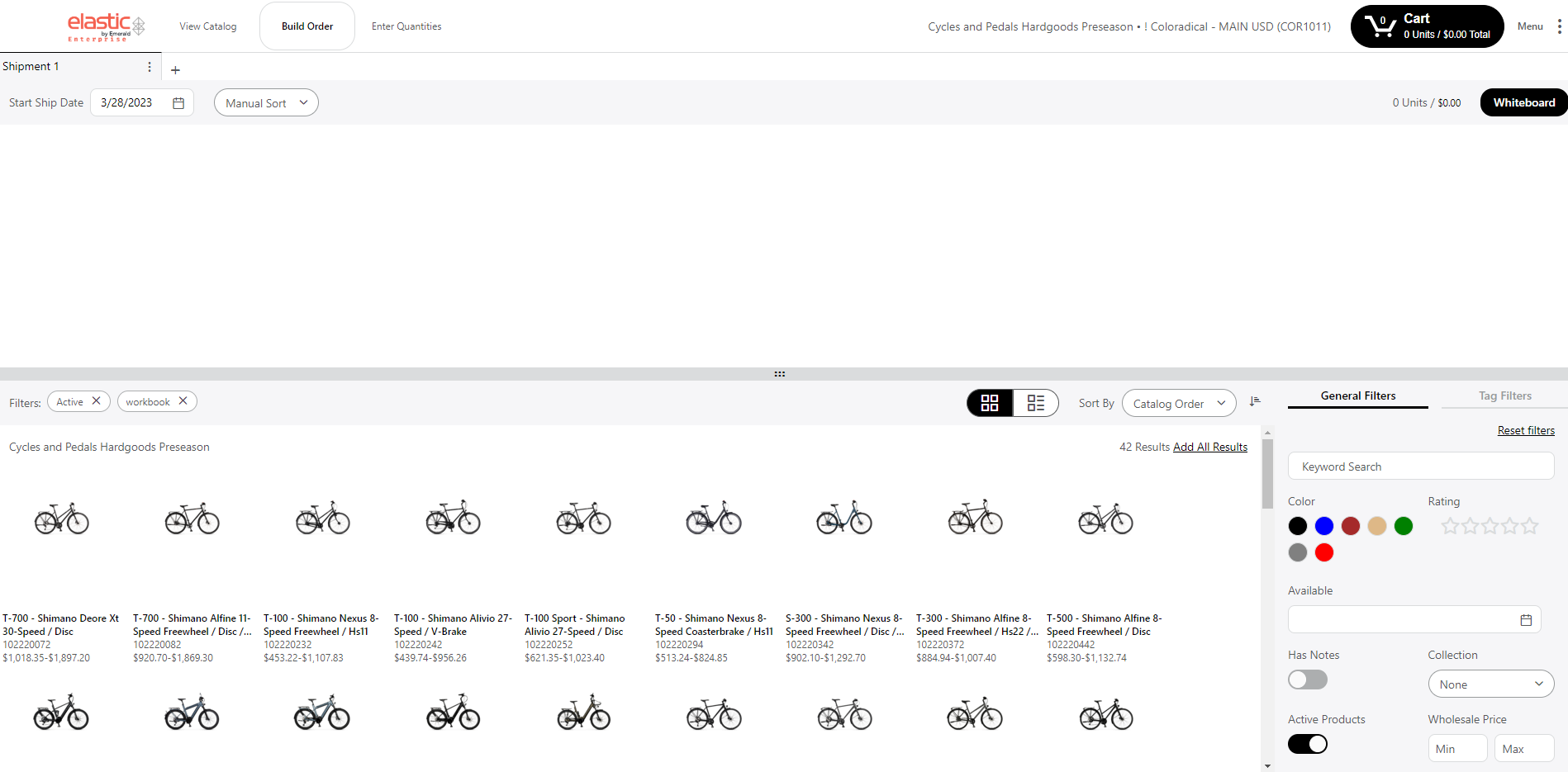
Build an Assortment
To Add Products
Drag and drop from the catalog grid to the assortment or simply click on the product and it will be added to your assortment.
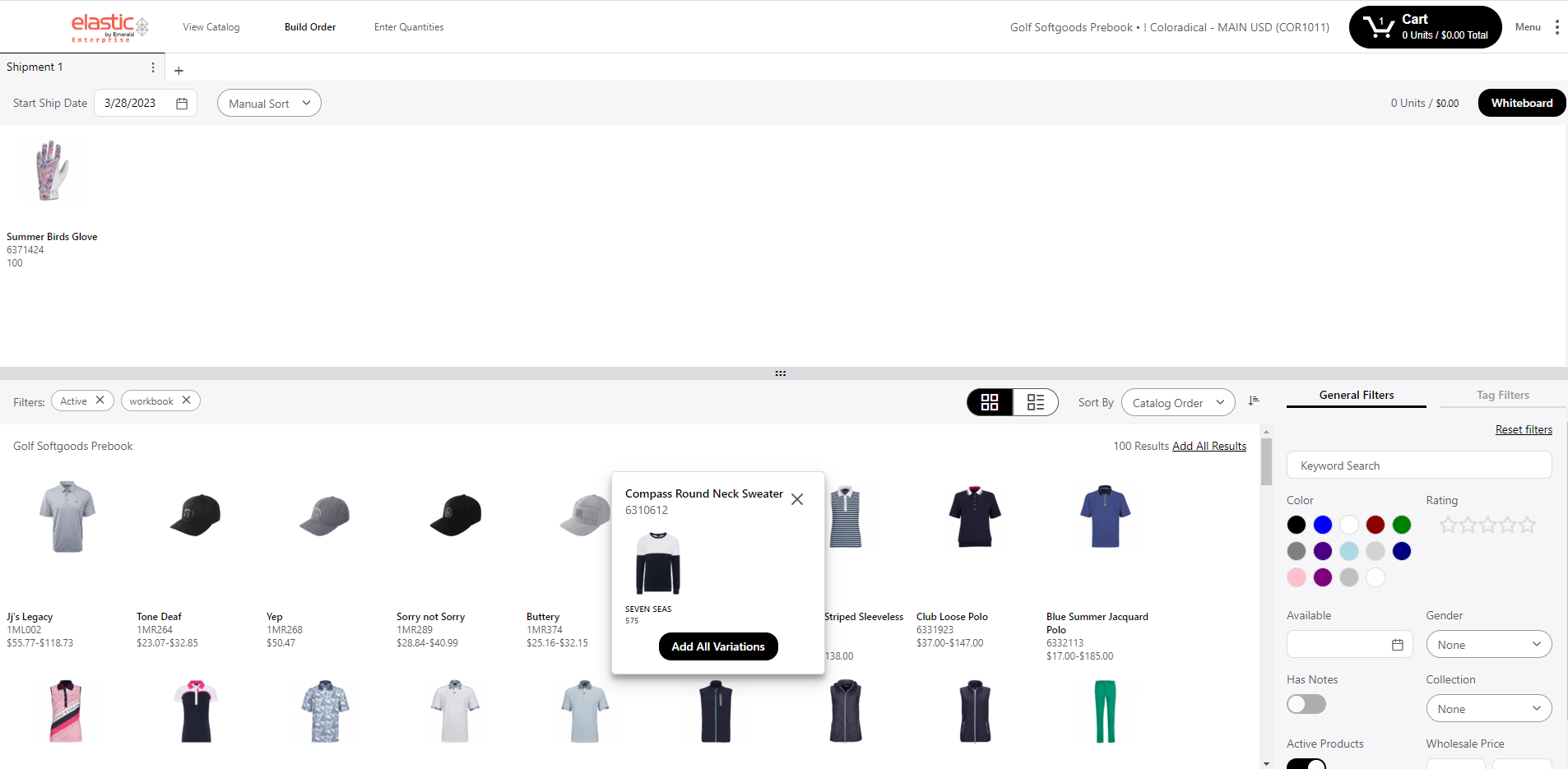
You can also add a specific colorway by clicking the name of the product. This will expose a list of all available colors. From this list, you add variations one by one, or you can choose the ‘Add All Variations’ button to add all variations instantly.
To Remove Products
- Click on a product to select it and hit Delete on your keyboard.
- Drag and drop it out of the assortment back into the Catalog Grid.
To Add Sizing / Units
Adding products to your assortment will also add them into your cart. However, the total items for your order will continue to show '0 Units' until you add quantities. For example this cart has 3 different items, but no quantities entered yet. You can add quantities to your assortment by clicking on the Cart button:
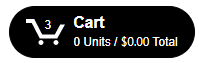
Both the unit and monetary total will update as you enter item quantities.
Filters
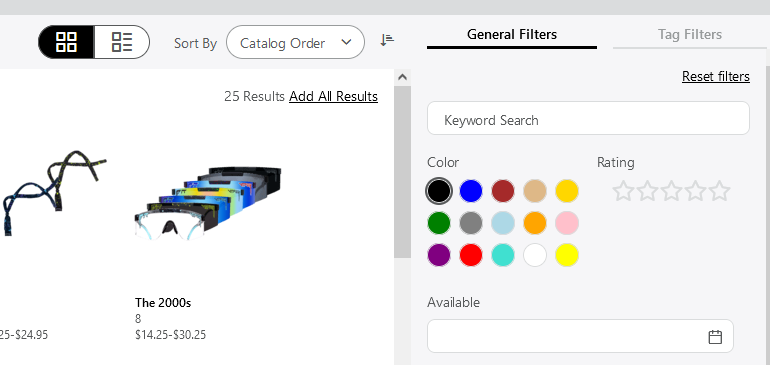
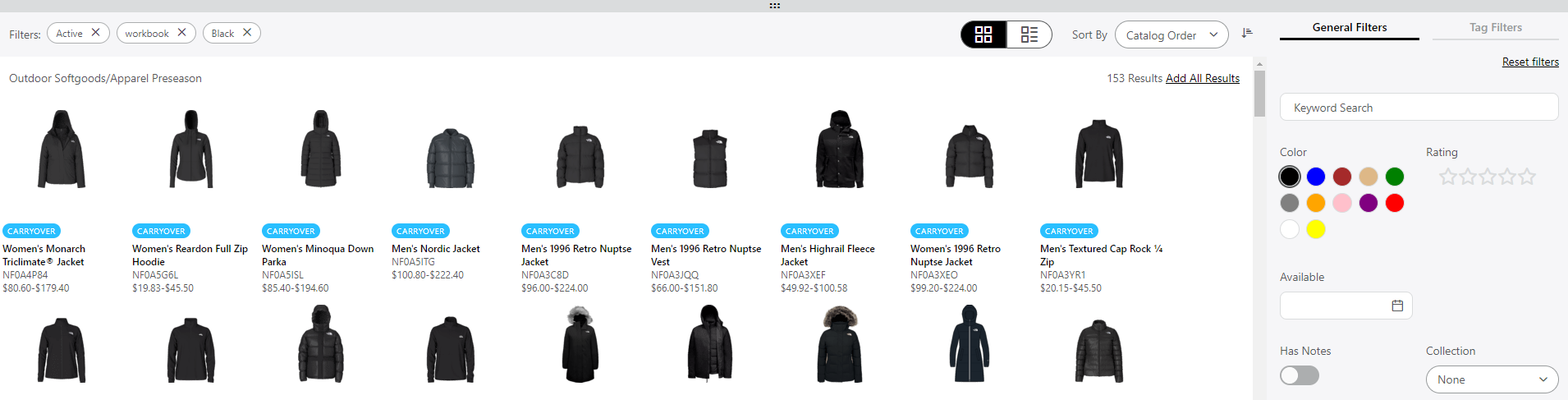
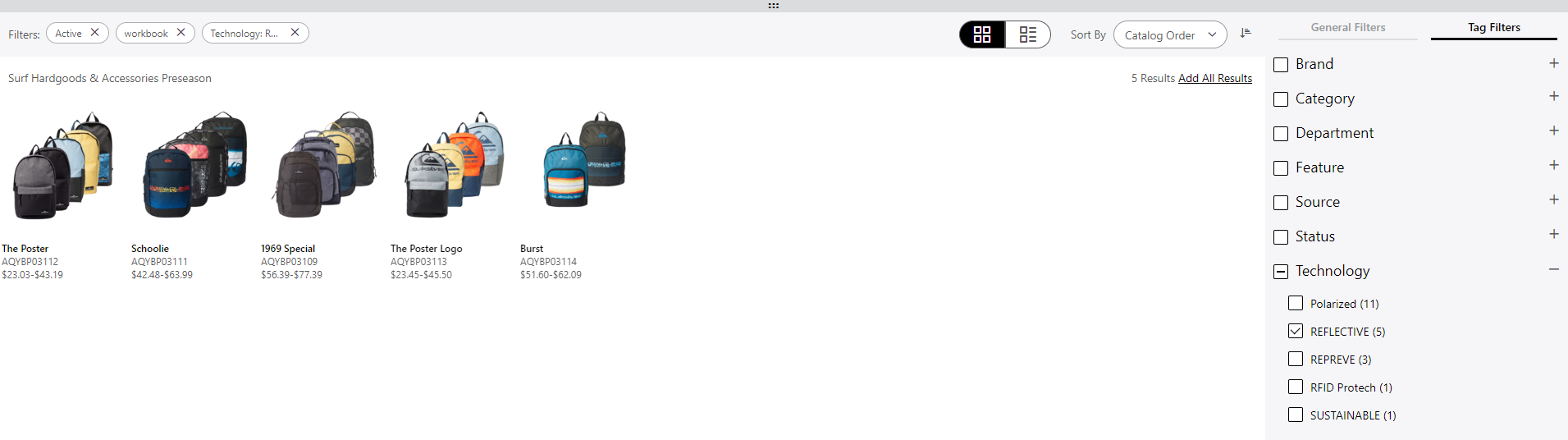
There are a number of ways you can use the filters to find the products you want to add to your order. Filters are divided to general filters and so called tag filters. You can also add all filtered results by clicking the 'Add All Results' button, next to the keyword search.
General Filters
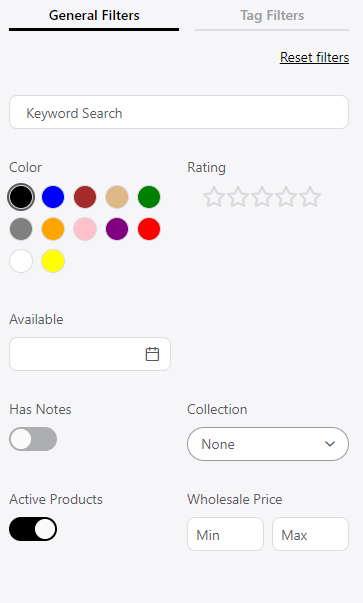
The Keyword Search allows users to type in a product name, part number, or item type. You can also filter by color, gender, rating, availability, Collection, or notes you’ve made. At any time, you can reset the general filters by selecting the 'Reset filters' button in the top right corner of the filter panel.
Tag Filters
Add Filtered Results
Product Detail Page
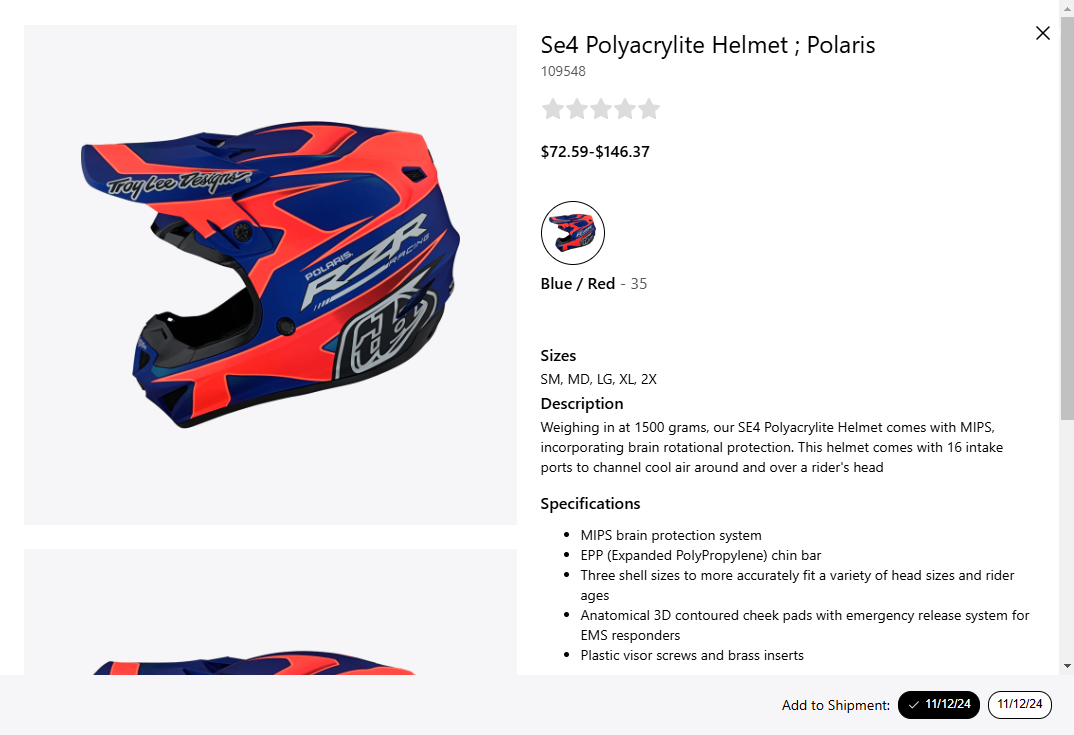
Double clicking a style on the grid will open a product detail page. In this pop-up window you can read more about product details such as technology and availability. If the products have complementary products or similar product recommendations defined, this information will appear here as well. This is a great way to learn more about the products!