Our support pages have been provided in English, to translate to your desired language you can use the built-in translate function in Chrome or Firefox.
How do I print an order?
1. To start, open the order you want to print by clicking on it in the 'Orders' widget.
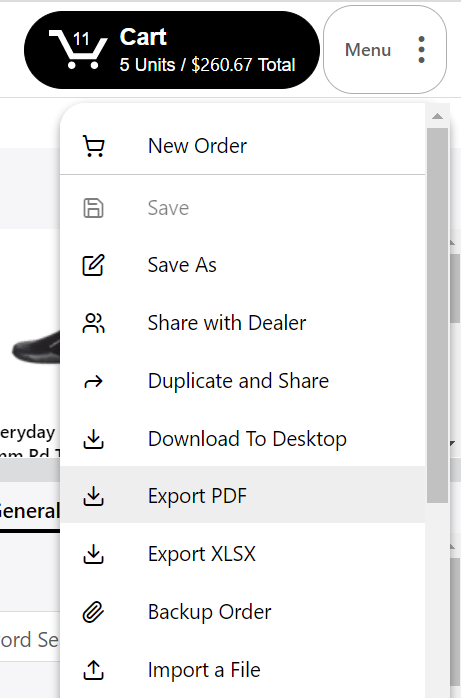
2. After you've added products to your cart, click on the Menu drop-down button in the top-right corner and select 'Export PDF'. ***IMPORTANT: If you don't have products in your cart, this option will be greyed out. If you wish to print an entire catalog, you can add all products to your cart or create a Collection.***
3. This will open the 'Export Options' window
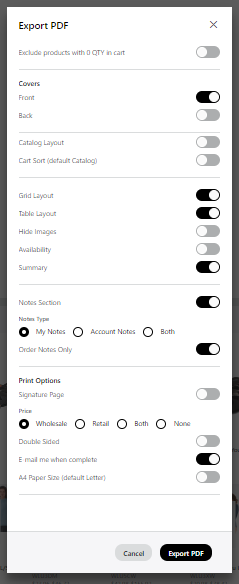
This will present a screen that allows you to select what layouts should be included in your order PDF. You can choose as many or as few of the below options as you'd like. The PDF that you generate this way can be downloaded from the Print Jobs page.
Covers
Catalog Layout
Grid Layout
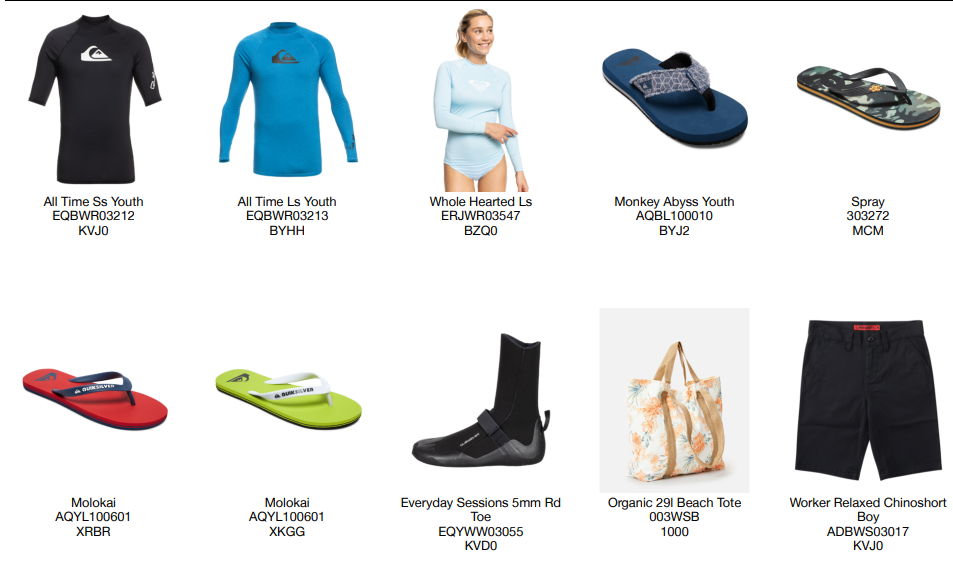
Table Layout
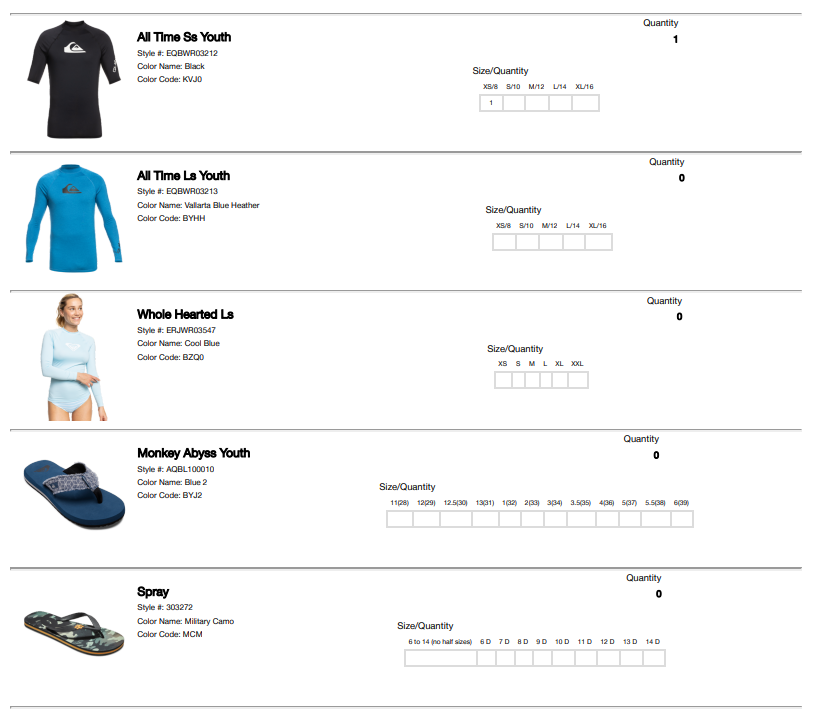
Summary

Print OptionsSignature Page
Price
Double Sided
E-mail me when complete
Paper Size
4. Click 'Export PDF' - a message will appear confirming the creation of your print job.
5. Go back to the menu and click 'Print Jobs'.
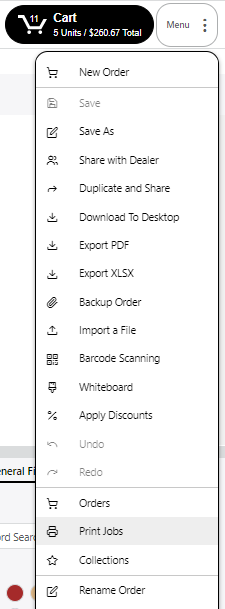
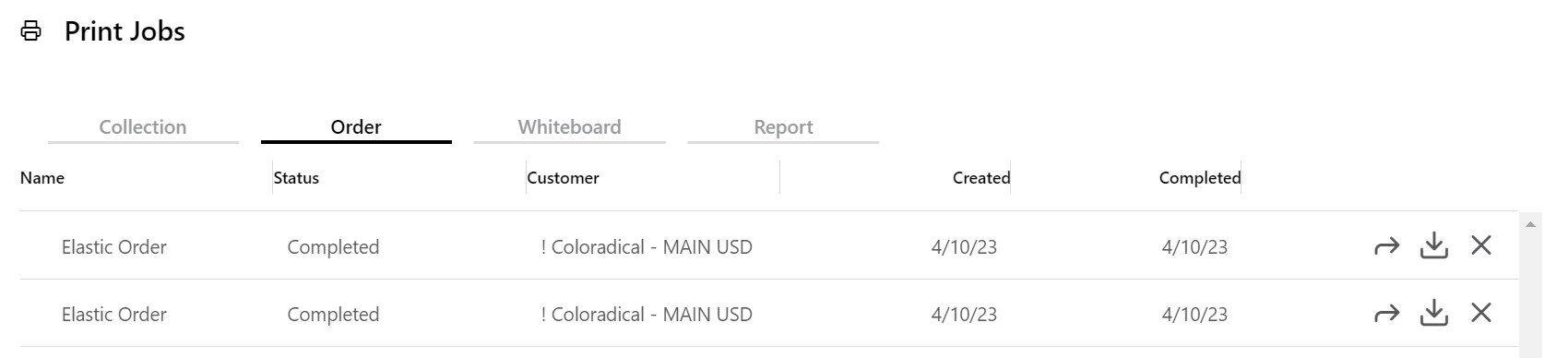
6. Your print jobs view will open - select the 'Order' tab to view all of your generated order PDFs.
7. Click on the download icon button to the right to download the PDF to your desktop.