
Our support pages have been provided in English, to translate to your desired language you can use the built-in translate function in Chrome or Firefox.
Create an Availability Output (PDF)
Availability Output (PDF)
1. Create a new order.
2. From the 'Build Order' screen, click on the Available (Calendar Date) filter. This should return items that are available on the date you selected:
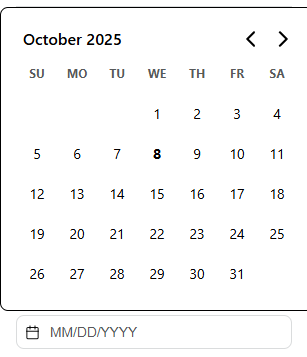
3. Add items to the Shipment/cart. *Pro Tip – you can click the 'Add All Results' link to add ALL styles to your order:

4. Menu > Export PDF. If there are no products in your cart, this option will not be available:
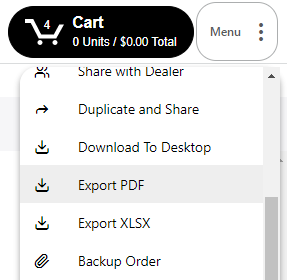
5. This will open the 'Export Options' window, which allows you to select what layouts should be included in your order PDF. Deselect 'Table Layout' and select 'Availability - Include?'. Then click 'Export PDF':
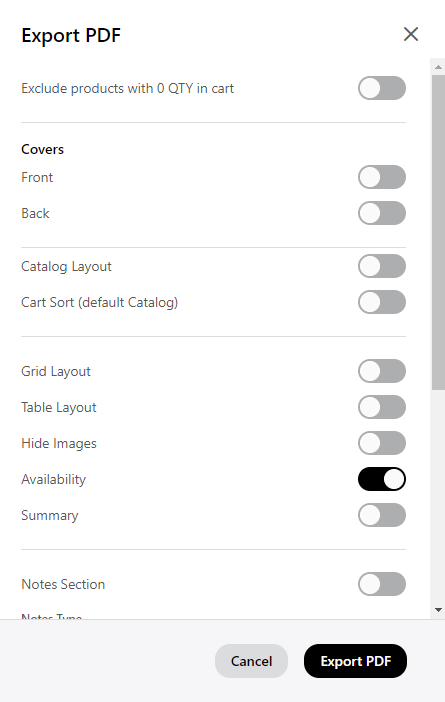
The PDF you generate this way can be downloaded from Print Jobs in the Menu, and from the Print Jobs page from your Dashboard.