Our support pages have been provided in English, to translate to your desired language you can use the built-in translate function in Chrome or Firefox.
Adding and duplicating pages in your Whiteboard
Whiteboard Pages
Depending on the number of styles in your merchandising arrangement, your Whiteboard may need to be divided into multiple pages. To do this, follow the steps below:
1. Click on the button in the top left corner of the screen to add a new Whiteboard page.
2. You will see the new page appear as a tab next to 'Page 1'. Click on the tab to view your new blank page.
2
Clicking on the three dots menu on the selected page will allow you to Duplicate, Rename, or Delete that page.

Rename allows you to change the page names.
Duplicating a page will copy everything on the selected page.
Deleting a page will completely remove that page from your Whiteboard.
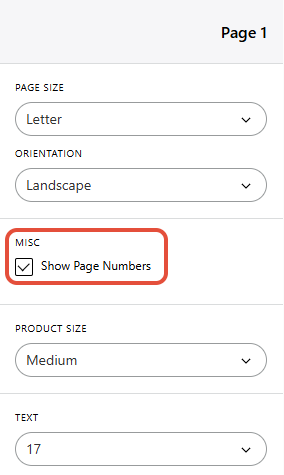
You can also determine if you wish to display the page numbers.